England IPTV Installation Guide
Set up your England IPTV subscription in just a few minutes. Choose your device below for simple, step-by-step instructions - and if you get stuck, our team will set it up free on WhatsApp.
Already have a media player? You can use it
Our subscription works with all the most popular IPTV apps. If you already have one of these installed, just send us your details and we'll get you activated:
Install England IPTV on Amazon Firestick
-
1
Install the Downloader app
From your Firestick home screen, search for Downloader and install it. This free app lets you download our player.
-
2
Allow app installs (first time only)
Only needed the first time you install apps this way:
- Go to Settings → My Fire TV → About
- Highlight your Firestick name (e.g. Fire TV Stick 4K) and press OK 7 times quickly - you'll see "You are now a developer"
- Go back once and open Developer Options
- Turn on ADB Debugging and Install Unknown Apps
- Open Install Unknown Apps and switch Downloader to ON
-
3
Enter the download code
Open the Downloader app, type the code 481220 and press Go. Install the app and open it.
Install England IPTV on Android / TV Box
-
1
Open the Google Play Store
Works on Android phones, tablets, Android TV and Android boxes. Open the Google Play Store on your device.
-
2
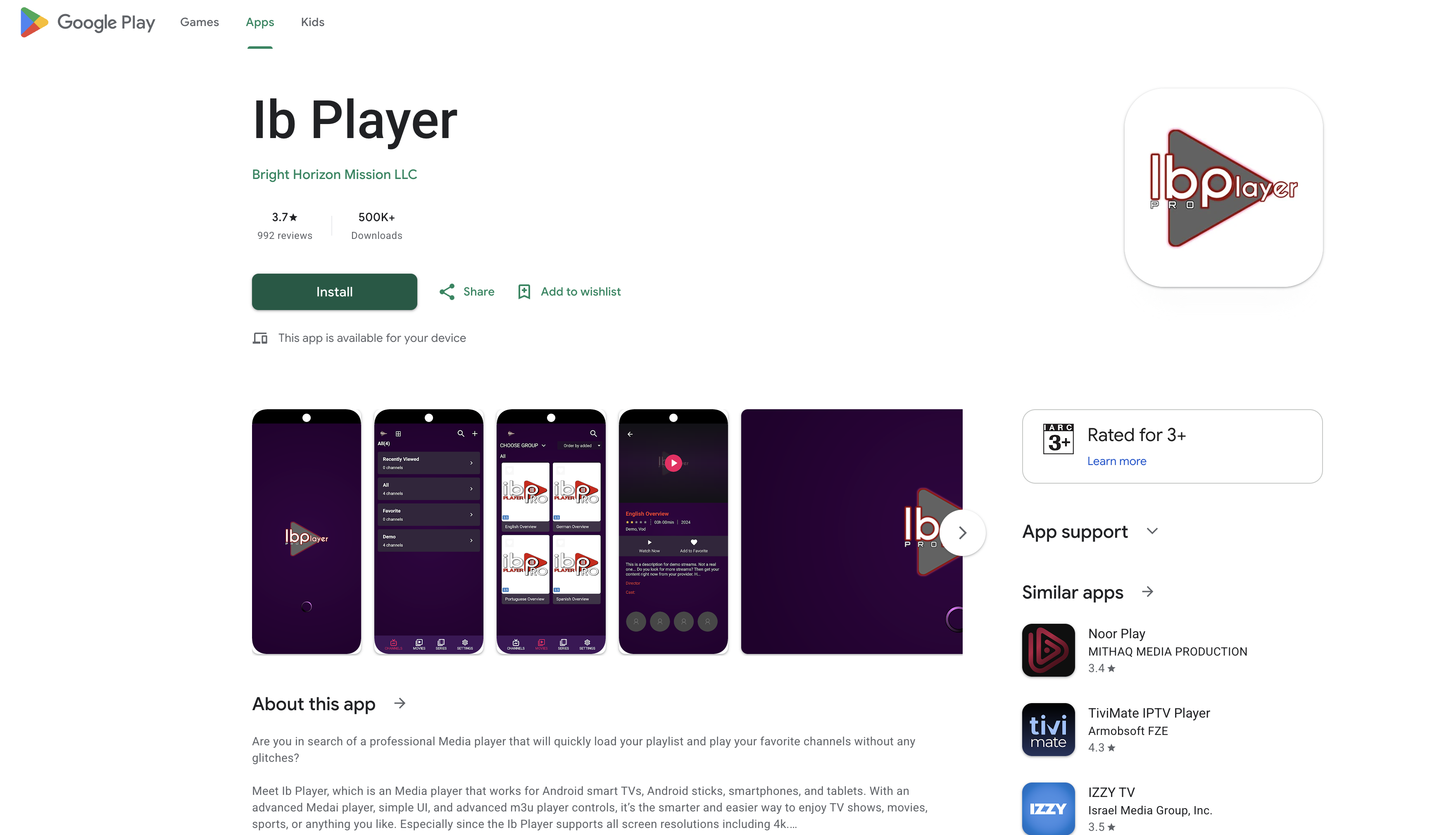
Search for “Ib Player”
Find Ib Player (shown below) and tap Install to install it.
-
3
Open the app
Launch Ib Player. It will show your MAC Address & Device Key on screen.
Install England IPTV on iPhone / iPad
-
1
Open the Apple App Store
Works on iPhone, iPad and Apple TV. Open the Apple App Store on your device.
-
2
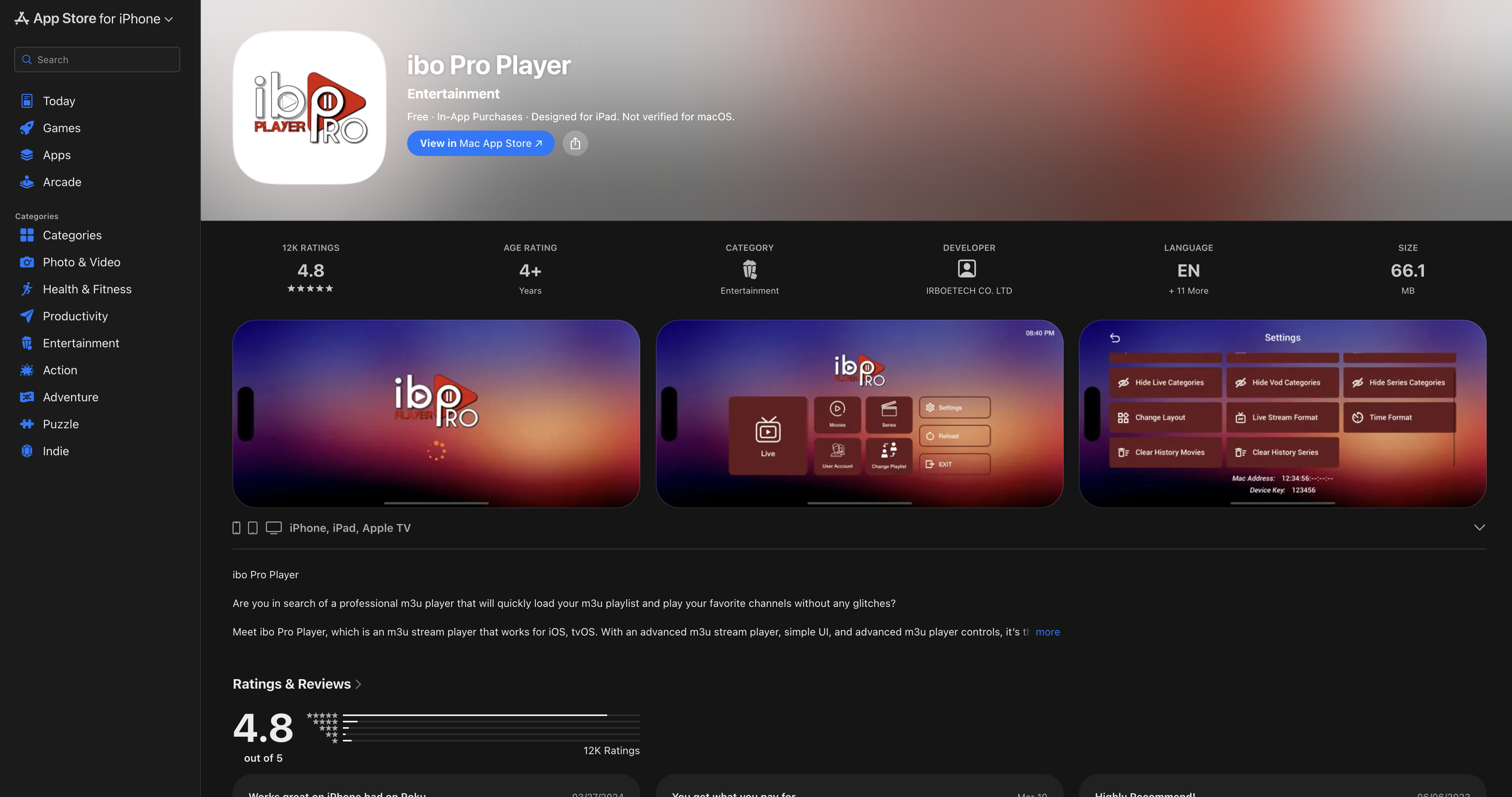
Search for “ibo Pro Player”
Find ibo Pro Player (shown below) and tap Get to install it.
-
3
Open the app
Launch ibo Pro Player. It will show your MAC Address & Device Key on screen.
Install England IPTV on Samsung TV
-
1
Open the Samsung Apps store
For Samsung Tizen Smart TVs. Open the Samsung Apps store on your device.
-
2
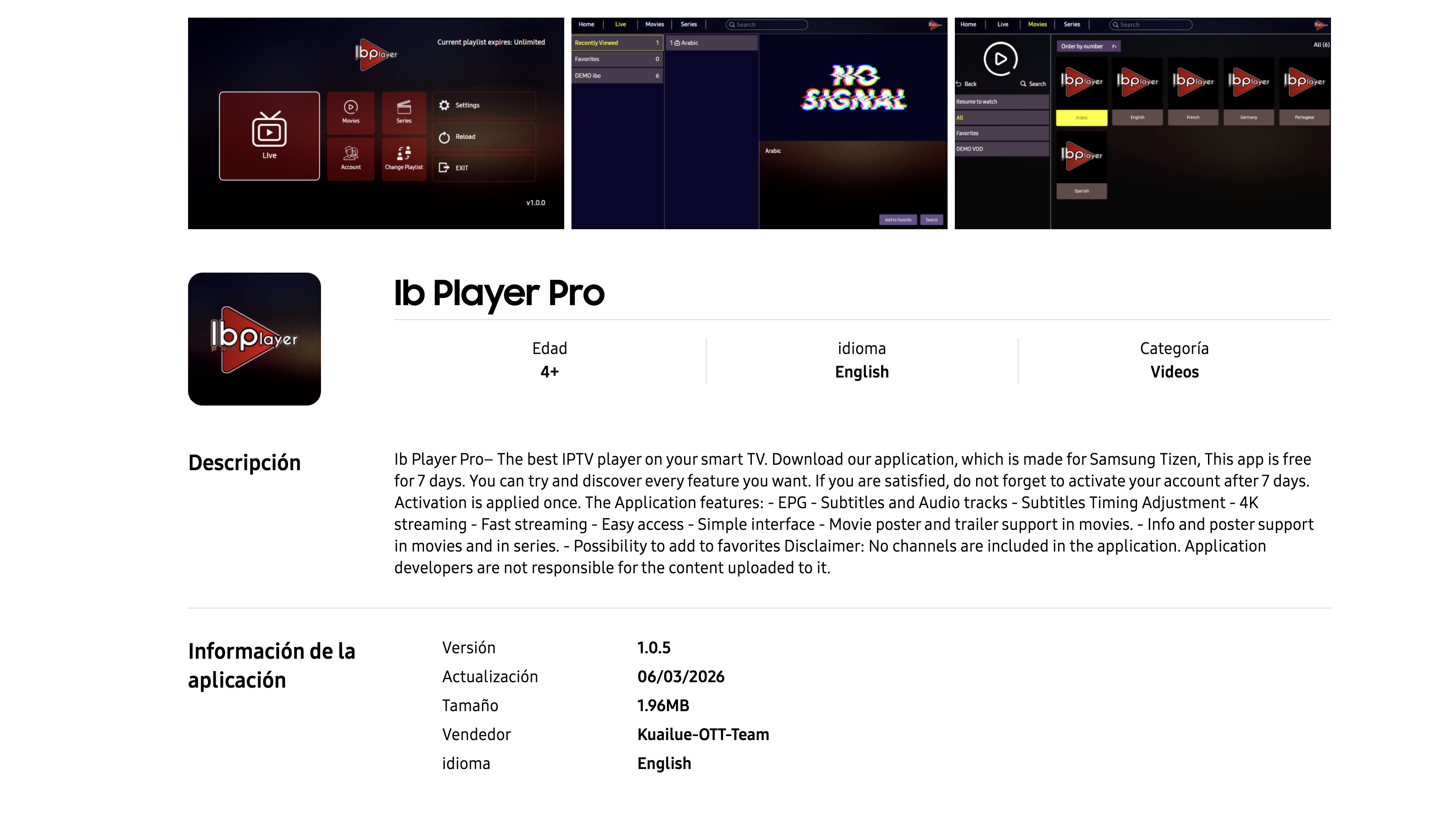
Search for “Ib Player Pro”
Find Ib Player Pro (shown below) and tap Install to install it.
-
3
Open the app
Launch Ib Player Pro. It will show your MAC Address & Device Key on screen.
Install England IPTV on LG TV
-
1
Open the LG Content Store
For LG webOS Smart TVs. Open the LG Content Store on your device.
-
2
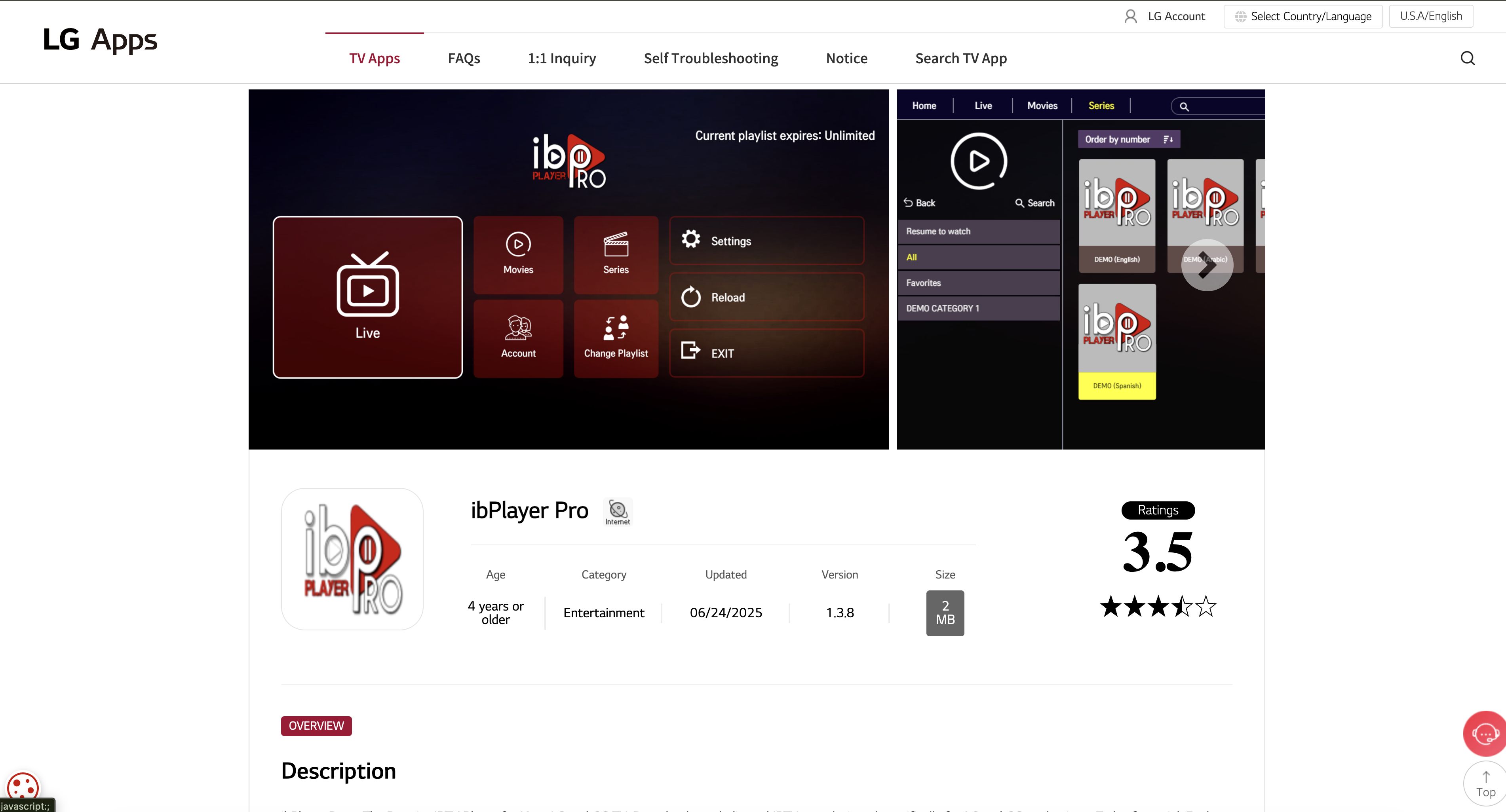
Search for “ibPlayer Pro”
Find ibPlayer Pro (shown below) and tap Install to install it.
-
3
Open the app
Launch ibPlayer Pro. It will show your MAC Address & Device Key on screen.
Install England IPTV on Roku
-
1
Open the Roku Channel Store
For Roku sticks and Roku TVs. Open the Roku Channel Store on your device.
-
2
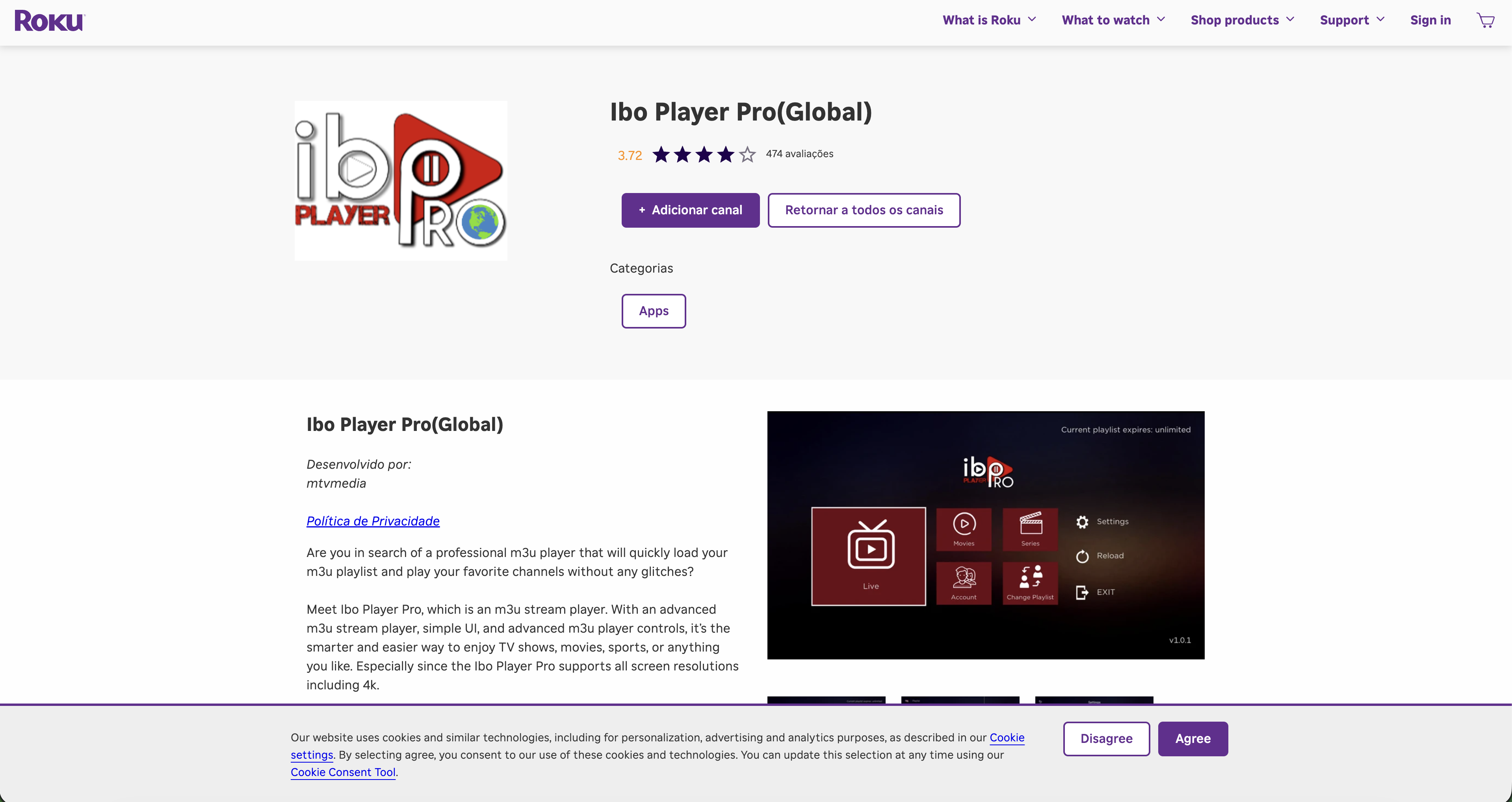
Search for “Ibo Player Pro”
Find Ibo Player Pro (shown below) and tap Add Channel to install it.
-
3
Open the app
Launch Ibo Player Pro. It will show your MAC Address & Device Key on screen.
Install England IPTV on Windows / Xbox
-
1
Open the Microsoft Store
For Windows laptops, PCs and Xbox. Open the Microsoft Store on your device.
-
2
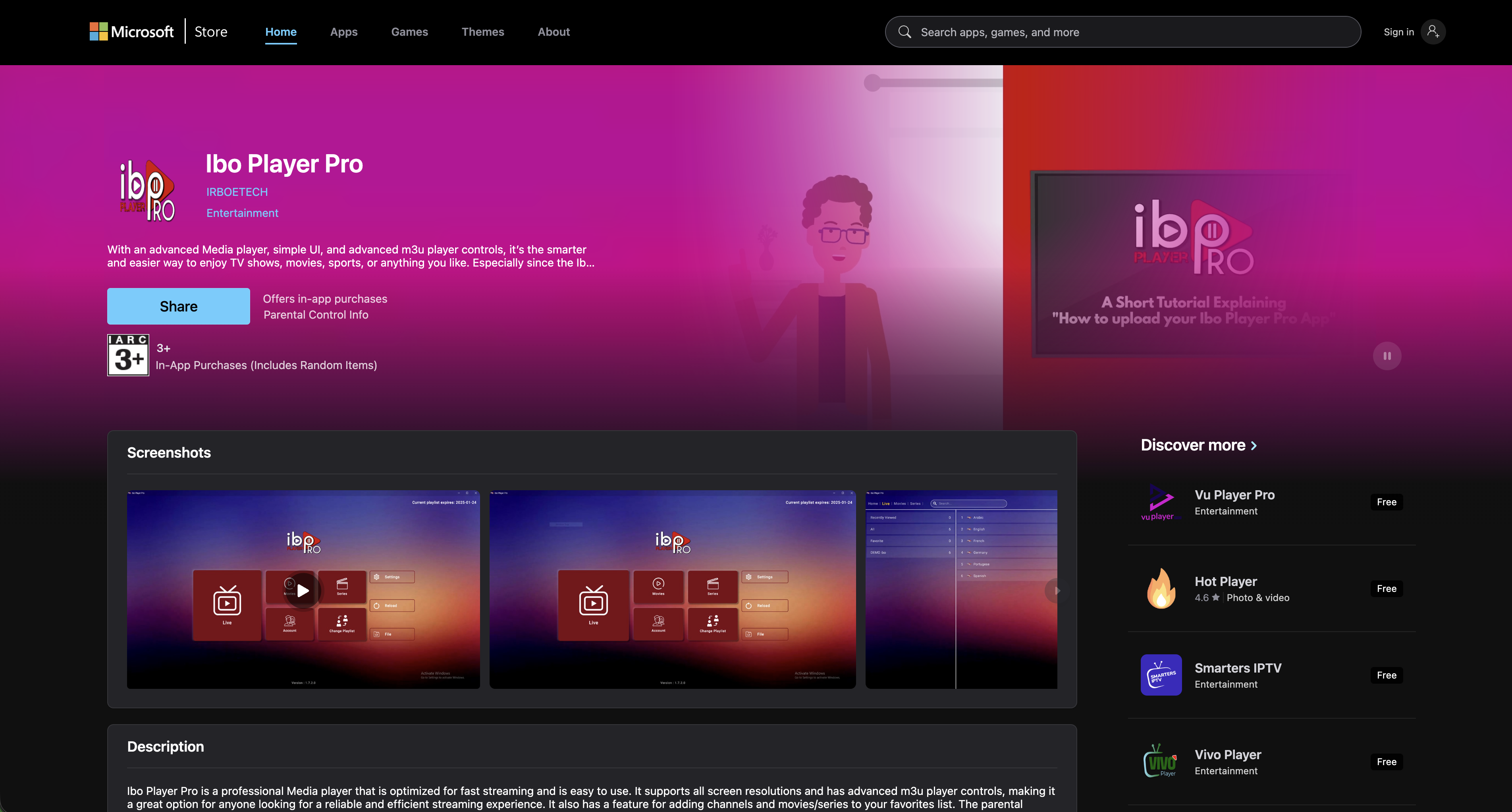
Search for “Ibo Player Pro”
Find Ibo Player Pro (shown below) and tap Get to install it.
-
3
Open the app
Launch Ibo Player Pro. It will show your MAC Address & Device Key on screen.
Install England IPTV on a MAG Box
-
1
Open Settings
On your MAG box, go to Settings (the system settings menu).
-
2
Find your MAC address
Note the MAC address shown on your device and send it to us on WhatsApp.
-
3
We load your portal
We'll set up your portal from our end and send it to you. Restart the box and you're ready to watch.
Need a hand setting up?
Our 24/7 support team will happily install England IPTV on your device for you - just reach out.